Showing posts with label phone. Show all posts

Friday, September 20, 2019

September 20, 2019

10 ways to create a professional video on social media


Nowadays, people like to use social media to post their opinions and express what they want to share with others in their promotional postings, and generally to increase interaction extensively they always put videos to get some interactions. These videos are easy to create with some basic video tools and here are 10 ways to make a professional video on social media.

  
 1. Write a scenario first


You need to write a video script This script should cover all the topics you want to discuss in the video. If you are not confident that you can continue to talk based on the points you have specified in your script, it is best to use a short sentence that is easy to understand in the script.

2. Enter directly into the subject

You should avoid wasting time talking about things that do not initially represent the main message of the video or the essence of the topic.
Alternatively, the video should have an interesting start. For example, you can open the video with a personal and direct question to yourself and followers. Immediately after asking the question, you can rest assured that watching the rest of your video can provide them with the answer. Editorial Before you upload, always play your video and check what you are saying, perhaps you may deviate from the subject for a few minutes in your speech!
You can use any snipping tool in the online video editor to delete unnecessary parts of your speech.

3 - Include video images and explanations

After you set up the script you can embed the video with pictures and explanations. You should ask yourself what material do you need to embed the video? Such as stored images, graphics, and annotations in writing will include video with images, annotations, and other attachments to determine what content you need to include in your video.

 4- Mute the sound before loading

For mobile viewers you can improve your social media video by mute and say mute and not remove it from the basic video. In Instagram there is an option to turn off the audio in the video by clicking the audio icon Make sure to use a video editor to mute the sound before loading.

 5. Use a good quality microphone

If you decide to include voiceover, be sure to use a good quality microphone. Sound quality can affect the quality of the entire video if you are recording with a DSLR camera.You can purchase a microphone that you can add directly to the camera.If the camera does not have a microphone port, you can then make the voice-over feature on an audio recording program.

 6. Display subtitles in video
You should add subtitles, which are textual texts on the words spoken by actors in the video. Most major social media use English as the main language so if your video contains foreign-language actors, you should place subtitles. You can also put subtitles in a feature film to help people keep track of what the actors are talking about. In YouTube, you can upload subtitles via YouTube Editor. If you are adding subtitles using a video editor, make sure the font color and style are simple. Arial white fonts work best for subtitles in the video and I recommend them. Other readable font styles include Heveltica and Verdana, which are also great.

 7- Video optimization for each social media platform


It is important to optimize video for different platform platforms. On Twitter, for example, I recommend you to keep the video for 45 seconds, but if the video is dedicated to the Instagram feed, it should be 30 minutes or less. If you are making a video on Instagram stories it should be at least 15 seconds. Videos should be on Snapchat for 8-10 seconds. As for the video format, vertical video is best for social media like Snapchat and Instagram stories. YouTube You should ideally upload a horizontal video and for best results you should create a custom video for different platforms.

 8- Add quiet music in the background


In almost every video you play on YouTube, you can hear some cool, cool music in the background. In Instagram, you can add music to your story from the music library. It contains tracks for songs from the three main record labels to access the music library, you can click the smiley icon and then click the music icon but if you want to add music to your video on a media platform You should use a video editor to add it.

 9. Include a call for action


You'll need to include an invitation to take timely action in your video that tells followers to take action, such as sharing your video on social media, commenting on your video, subscribing to your channel, or visiting your website whenever viewers share your video content , Views with more comments are often popular and surfacing in your followers feed

You should not only allow people to watch your video and then just click instead, plan to move the viewer to your website or visit your store so that they can take action to help your video content lead the way in the meantime, also don't forget to check your analytics stats and track The number of users following your call to action that allows you to effectively measure your video's ROI

 10. Include animated footage

Your social media video must have some movement to attract audience attention. You can embed animated footage to illustrate what you're talking about in the video. You can go to sites like Adobe Stock and Video Blocks to find animated videos that you use in your video.
September 20, 2019

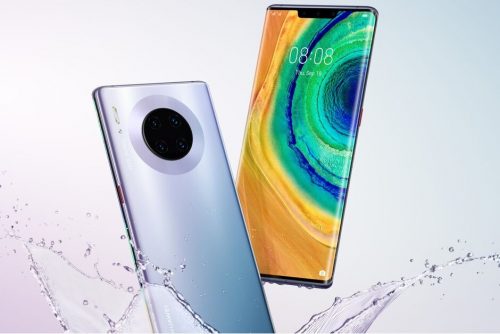
Huawei Mate 30 Pro officially unveiled - full specifications and details!

Finally, after a wide range of leaks and speculation Huawei has now officially unveiled the flagship distinctive Huawei Mate 30 Pro with a host of features that qualify him directly to compete iPhone 11 Pro and Galaxy Note 10.

Huawei Mate 30

Camera Huawei Mate 30 Pro

Huawei Mate 30 Pro offers one of the most impressive cameras of 2019, where the phone along with the 40-megapixel Super Sensing camera on the P30 Pro, a 40-megapixel wide-angle camera is also called the company Cine, and can both cameras using the sensor 3D ToF Record videos with complete background isolation.

Camera Huawei Mate 30 Pro


Both cameras are relatively large, with the main camera having a 1 / 1.7 sensor and f / 1.6 aperture, while the Cine camera has a 1 / 1.54-inch sensor and an ultra-wide lens with f / 1.8 aperture.
The third camera on the back of the phone is an 8-megapixel camera with 3x optical zoom (80mm focal length) and 5x optical hybrid zoom, with OIS.

The video recording technology on the Mate 30 Pro is the most distinctive on Huawei phones, where the device supports 4K video shooting 60fps and support slow shooting at 7680 frames per second, and the most outstanding thing is the possibility of shooting 4K resolution HDR +.

3D facial recognition feature and remote phone control

Talking about the front camera unit of the Huawei Mate 30 Pro, we are in front of a high-resolution unit with a set of features that combine the most prominent features of the camera phones leading in one device. 

3D facial recognition feature and remote phone control


The front camera comes with a 32-megapixel camera, supports FHD + video recording (2288 x 1080 pixels) with support for a range of distinct shooting modes.

A new 3D scanner from Huawei introduces Face Unlocking technology, which has been improved more than last year to compete strongly with Apple's Face ID technology.

Also, Huawei has not abandoned the built-in fingerprint sensor at the bottom of the screen, but developed and improved to become faster than any other phone.

The surprise was the presence of a dedicated Gesture sensor to recognize gestures remotely, a blow to Motion Sense feature that Google is preparing to launch in Pixel 4 next month.

The presentation of the Mate 30 Pro included a review of this feature, with a hand gesture you can change music or switch pictures, as well as looking at the phone will automatically light up the screen and when you turn your face or close your eye will turn off!

Horizon Display

The Mate 30 Pro features a new 6.5-inch Horizon Display concept, with 88-degree curvature edges on both sides, leaving the leading Chinese manufacturer with no place for conventional volume controls. Activate them by double clicking on either side of the screen. 

Horizon Display

The new OLED panel also supports a standard 60Hz refresh rate and cross-screen audio that essentially eliminates the need for a traditional call headset, but the downside of this feature is the lack of a stereo speaker.

The screen resolution has also dropped from 3120 x 1440 pixels to 2400 x 1176 pixels, but this change could improve battery life.

Battery 

The Mate 30 Pro has a large 4500mAh battery that supports 40W super fast charging and 27W fast wireless charging. Like the Mate 20 Pro and the P30 Pro, the Mate 30 Pro also supports enhanced reverse wireless charging that is three times faster than before. 

Battery

Kirin 990 5G processor without Google services

The Mate 30 Pro is powered by the recently announced Kirin 990 5G chipset, and supports eight different 5G bands, while the Galaxy Note 10 Plus supports only three bands.

These chipsets are paired with 8GB of RAM and 256GB of internal storage that can be expanded via a nano-SD card.

Huawei will also provide 4G LTE version for those who cannot yet benefit from 5G services.

Huawei Mate 30 Pro comes with Android 10 pre-installed on the side of the new EMUI 10 interface, but the phone does not have access to Google Play services or any of the Google apps according to the previous news, which is not talked about Huawei and solutions have not yet.

Kirin 990 5G processor without Google services

Price and availability of Huawei Mate 30 Pro

Finally, the new Huawei flagship will be available for purchase in multiple colors including green, silver, purple and black, and there are two different versions of vegetal leather on the back instead of glass in green and orange.

The company has not set the release date and availability of the Mate 30 Pro yet, but the 4G version was announced at a price of 1099 euros (approximately $ 1200), while the 5G version was announced at 1199 euros (approximately $ 1326).

Do you want more applications and News ?


Thursday, September 19, 2019

September 19, 2019

What happens when you put your phone in flight mode?

Flight mode is a useful option for your smartphone, as once you press the button, you can deactivate the data connection and thus avoid turning off the phone even though it has two alternative uses. That's why I'll show you 8 interesting uses for the flight mode.


1. Does Flight Mode charge your phone faster?


 If you activate flight mode on your smartphone, you will get to charge your phone faster after you plug it into a socket.Therefore it is also suggested to activate flight mode while charging your phone.You will achieve two key points by activating flight mode on your smartphone: - Avoid using the phone while charging - Stop using it for at least a few hours to give you time to try different kinds of things.

2. Does flight mode save battery?


On the other hand, if you activate flight mode on your smartphone, you get two very cool things about the battery. On the one hand you can save battery for example if you don't need to turn off the phone at night and leave it only in flight mode. This will make your phone deactivate all mobile connections and thus will pay less for data connection. Consumption of Wi-Fi and other flight mode is also ideal once the battery is at a minimum and you don't have a charger nearby and you're away from home; activate flight mode The battery will drain charging as soon as possible while activating the data connection.

3. Does the alarm work in flight mode?


Yes, flight mode only affects the data connection to your Android phone but will not affect the alert settings so you cannot receive or send a message or call and use the mobile internet.

4. Can you use the Internet on a plane?


You can use the Internet in Airplane mode by using Wi-Fi only.You will be able to activate Wi-Fi to browse the Internet on your smartphone. You can't use a mobile data connection as I already said because it affects mobile networks

5. Can you browse the Internet while blocking calls?


Have you ever wanted to be ready to surf the Internet on your phone but don't need to receive any call or SMS? Well if you activate flight mode, you will be able to surf the Internet on your phone without having to receive any call or SMS altogether because this mode disables the mobile connection but you will be able to activate Wi-Fi later which gives you the choice between receiving a call or browsing the internet. It means that if you set flight mode, activate Wi-Fi, and if someone calls your phone, it looks like it is switched off and can skip your voicemail if you activate it.This way saves people from the inconvenience by simply not having to receive calls.

6. What happens when someone calls you in flight mode?


While flight mode is activated, the mobile network connection will be turned off. Sometimes, when a user exits the mobile network and is contacted by a contact at that moment, that user can detect that you are "off the network and you may not be reached at this moment" only in flight mode, the event is similar and the response will be identical.

7. To protect your children, flight mode will be your good ally


If you have children and prefer to switch on your phone all the time, activating flight mode can prevent problems and avoid accidents that might happen to your kids, such as calling people, surfing the web, shopping for apps in-store, and more.

8. Can you block ads in flight mode while participating in offline games?


Some games allow you to play offline online and basically contain all the ads, but there are only very few of them in general. It will be annoying and this happens when Flight Mode starts working, so you'll still be able to play without problems and block ads because you won't be connected to the Internet, Wi-Fi or data connection.
September 19, 2019

Official iOS 13 update launch - how to properly update your device


 The iOS 13 update is now available to the public for download and installation on supported devices.In this article we will explain how to update to iOS 13 correctly to avoid any errors in addition to mentioning some of the features of iOS 13 update that you will enjoy immediately after the update, also we will respond to all Your inquiries.


Devices supported by iOS 13 update


- iPhone and iPod Touch:


The iOS 13 update for all iPhones currently running will arrive with the iOS 12 update except for three phones: iPhone 5s, iPhone 6 and iPhone 6 Plus. All newer versions of the iPhone will get an iOS 13 update.


For the iPod Touch, only the 7th generation iPod 7th 2019 will get the update.

IOS 13 update release date

IOS 13 update launches today (Thursday 19 September 2019)

Tip: It's best to wait and don't rush to download the iOS 13 update to avoid clicking on Apple's servers and ensuring the update is downloaded properly.

Important tips before updating to iOS 13:

  •  Update the apps on your device through the App Store or iTunes on your computer to make sure they are compatible with the new system and work on it without problems. By its developers over the coming days.
  • Remember the mail and Apple ID of the device, because you will need to enter it after the update.
  • Be sure to charge the battery, preferably 100% or connect the device to the charger during the update.
  •  Ensure the quality of your Internet connection (preferably over Wi-Fi).
  •  Make sure you have enough free storage space on your device (preferably 3 GB or more).
  • Take a backup of the content on your device, either through iTunes or iCloud.If the size of the backup is too large to use iTunes, this is an important precautionary step although the vast majority ignore it, and allows you to recover your data in case of any Problems with the new update.

An important step before the update for the owners of the beta version:

If you have the beta version of the iOS 13 update installed on your device and would like to update to the regular stable version, you must first unsubscribe from the trial program as shown in the images so that your device can receive the iOS 13 update normally.
  1. Go to Settings> General> Profiles
  2. Tap iOS Beta Software Profile
  3. Click Delete profile, so you will not receive any trial versions in the future.
  4.  Restart your device.   
 Unsubscribe from the beta before updating to iOS 13

Unsubscribe from the beta before updating to iOS 13Unsubscribe from the beta before updating to iOS 13
 

 How to back up (optional step) :

  1. . Through the iCloud :

    You can back up your files and data via iCloud, by going to Settings> iCloud> Storage & Backup> pressing the Back Up Now button at the bottom of the screen (prefer Way if your backup is small).

    Backup via iCloud cloud
    Backup via iCloud cloud
  2. . Through iTunes:

    • . With iTunes, after connecting your device to your computer, you can back up your applications and data. After clicking on your device in iTunes you will see all its information, make sure that in the Automatically Back Up section, the option is “This Computer” and not iCloud. Then click on the Back Up Now option in the same interface to make a backup and save it to your computer.

    Backup of iTunes

    Backup of iTunes

    • . The backup process will start, and the progress bar will appear at the top of iTunes. 
    • . After the backup is complete, you can make sure that the process is completed successfully by going to the taskbar in the program, pressing iTunes, then Preferences, then selecting the Devices tab from the window that appears, and you will see the backup is located in Device Backups and next to it It was taken. (This method is preferred if the backup is large)
    Backup of iTunes

 How to update to iOS 13 :

You can choose one of three methods, the first is suitable for everyone except those who have a jailbreak device, the second is easy and simple, the third needs some time and will return your device as you bought it the first time without your data and applications, i.e. all data will be erased and download the new system.

  1. . OTA antenna update from inside the device (the easiest and best way)

  • Turn on Wi-Fi
  • Go to Settings
  • Select the “General” or “General” tab
  • Then, Softwere Updates Software Updates
  • Select “Download and install”
  • It is recommended to connect the device to a power source (charging the phone).
** Note: This method does not cause the loss of data in the device, but also this does not replace the need to take a backup as mentioned above.


    2. Method 2 - Update through iTunes on the computer :

You can perform the update through the iTunes program via the computer is easy, as soon as you connect your device to iTunes, you will see a message alerting you to the possibility of the update, all you need to click on Download & Update the program will download and install the update automatically, and this method does not cause If you do not see the message, click Check For Update.

iOS 13 - Update via iTunes
** Note: This method also does not cause the loss of your data, however we recommend that you take a backup.


  3 - Method 3 - Manual update via iTunes :

(This method requires some additional steps, and deletes all content from your device)

This is the best method for those who own the jailbreak in case the previous steps of the update failed, and is done by downloading the update file manually (we will provide you links to download if available later) and is an file in the form of ipsw save the file on your computer, and this method will erase all Phone data so you should take a backup.

  1. Connect your iPhone or iPad to your computer while the iTunes app is running.
  2. Select Restore iPhone with Alt-click on your Mac, or hold Shift on Windows.
  3. A window will appear asking you to choose the location of the system file or the vermeer in ipsw format
  4. Select the update file you downloaded, which is an ipsw file (you can download it depending on your device type of links that will be attached in the article later).
  5. Installation is done manually.
  6.  After the update, restore the iTunes backup, by pressing the Restore Backup button. 
  
iOS 13 - Update via iTunes

iOS 13 - Update via iTunes


September 19, 2019

Here are the 10 best smartphones in photography and cameras.

After the release of many new smartphones from various international companies, the platform "DxOMark" presented the ranking of the most important smartphones in the field of photography and cameras. It comes with the specifications that this phone comes with.


iphone phone


DxOMark is the "industry standard" for evaluating the image quality of smartphones and cameras. This assessment is done through DxOMark's extensive testing protocol, which combines objective laboratory measurements with analysis that includes hundreds of images per smartphone in different conditions. Although image quality is a subjective subject, and photography also depends on the variables of the scene to be captured, DxOMark points are an attempt to simplify and bring consumers closer to important stats to find out the best cameras in smartphones.

samsung phone

The Galaxy Note 10+ is equipped with a triple main camera unit with a 12-megapixel (OIS) sensor, 12-megapixel (dual zoom, OIS) and 16-megapixel (123 °) sensor, which also complements the ToF sensor. Among the strengths of the camera, experts noted fast and accurate autofocus, low flow level, as well as excellent color details.

The Huawei P30 Pro is, second, one point apart, of course, because of the P30 Pro telescope lens that gives a remarkable 5x optical zoom, approximate 10x hybrid, and a stunning 50x digital zoom.The Huawei Super Spectrum sensor has a 1 / 1.7 inch size, Its ability to capture light in a radically different way.The RYYB color sensor deviates from the traditional RGBG Bayer filter by replacing green pixels with high-quality yellow pixels, raising the ISO rate to a maximum value of 409,600 on the HUAWEI P30 Pro and 204800 on the HUAWEI P30.

The rest of the other phones came as the following picture:

list


September 19, 2019

28 free Android apps and games for a limited time.Download now

Tuesday, September 17, 2019

September 17, 2019

Huawei Mate 30 , Evan Plus leaks photos and revealing details.

Huawei is planning to launch its new Huawei Mate 30 phablet on October 19, and appears to be mainly geared to compete with the Samsung Galaxy Note 10.


But the new Huawei Mate 30 will face a number of difficulties and on top of that it will be deprived of Google services in addition to the operating system Android, so Huawei focused on the attractive design and specifications of this phone.

For his part, the famous blogger and leaked Ivan Blas published during the past few hours a group of pictures of the phone Huawei Mate 30 models Mate 30 and Mate 30 Pro and then Mate 30 Lite and Mate 30 Porshe Desog.


Sunday, September 15, 2019

September 15, 2019

Android 10 , The most important functions in the new Android


Google announced the launch of the new version of the operating system Android, and explained that the new Android 10 is already installed on the new Google Pixel phones, and will be available on other mobile devices this year.


Android 10

The US company confirmed that the new Android 10 supports smart phones and tablets folding, and it also supports the technology of 5G mobile phone communications.
 

Here's a quick look at the most important new functions of Android 10, which for the first time will not carry a symbolic name represented by one of the candy names.


Privacy


In the new system settings, there is a new scope of privacy that allows the user to place restrictions on ads, app activities, and the web; for example, you can block apps, create a profile, or show personalized ads.

If a user allows applications to use location data, they can precisely specify these permissions. For example, they can allow access to location data only when the application is being used, and the user will be notified that inactive applications have access to their location data. 

Dark mode


The new Android 10 user can dim the backlight. For specific applications or for the entire device.This mode helps conserve battery charge and protect the eyes.

Security updates


The user can install security updates directly on the smartphone via the Google Play security updates function, similar to the way the apps are updated. The user does not have to wait until the operating system is updated.

Notifications


Notifications will not disturb the new Android 10 system if it is set to "silent" mode. As no sound will sound and no data will appear on the lock screen.

Focus mode


Videos, chats, and social media distract the user, and the user can get rid of it all at the touch of a button.The new Android 10 allows the user to pause the annoying apps when this function is activated in the settings, but this function is still in beta. If the user wishes to try it, he / she will have to sign in to the new Android 10 beta.

Listening devices


The new Android 10 supports audio streaming technology for listening devices, using Bluetooth Low Energy technology to conserve battery charge.

In addition, there are dozens of other features, such as canceling the back button and replacing the screen gestures in place, and the possibility of previewing live images - with the background of the device - before applying, and the addition of a button to quickly switch between Google accounts, and many others, where the number of changes brought by the new version over Sixty.

Android 10 logo on a phone

For more topics click here  

Saturday, September 14, 2019

September 14, 2019

Leaking specifications of the phone Huawei Mate 30 Pro !


Huawei mate 30 pro

Huawei is preparing to launch its new smartphone Huawei Mate 30 Pro, but the list of technical specifications of the device has already become known to everyone.

Huawei is expected to unveil its new phone Huawei Mate 30 Pro on the sidelines of a special event on September 19, but as leaked earlier photos reveal the design and shape of the phone, its technical specifications have become well known.

Thanks to the popular slashleaks, it leaked on Twitter the list of specifications of the new Huawei phone, where it is expected to come with a processor AMOLED FHD + measuring 6.8 inches and then Kirin 990 processor supported by 8 to 12 GB.

It will also come with a battery capacity of 4500mAh battery with a quad camera, most importantly 48-megapixel camera and 40-megapixel camera and 3D recognition technology.


For more topics click here  
September 14, 2019

Photography tips for iPhone user to be be professional photographer


if you are an iPhone user And you need the best ideas to edit your photos. You have reached the right place.in this guide. I will give you 5 photography tips for iPhone user to make your photos look amazing and admirable


Man photographing sea with mobile phone

IPhone has one of the best camera dimensions in the history of smartphones, many people use these dimensions to take pictures , because They are easier and more efficient than the dimensions of the huge camera. And can give you the perfect picture for your social media platforms .

Using iphone for photography and taking the picture is hardly enough to get the result you want. Getting excellent photo editing tools and apps is vital and somehow. You will have to retouch your image for perfection Photo editing with your iPhone can be very awful.

Photo editing is a combination of the best photo editing apps and photoshop apps choosing the app is only part of the qualifiers, There's a lot to look for more than just apps.


Woman photographing city with mobile phone at dusk
 

1. Take good photos


The first thing you need to keep in mind is taking the perfect photos. You may think that the photo editing process will help you. There is no magic trick in editing that will turn the badly captured face into beautiful. Photography using iPhone should focus on perfect photos first. Editing is just to remove or add some things to blend or cover other things. In some cases, editing will ruin your image if you don't get it right

2- Don't edit your photo without knowing what you want


You need to keep in mind what you want the final image to look like. You can't edit without understanding what you want to achieve. Look at the picture and decide how much adjustments you want to make. Is it an adjustment for exposure or color? Is it a modification of the pieces that will give you the final image? Or do you just want to remove some distracting elements from your image? All of these things can't be done at the same time. Planning adds value to your creativity. Using filters and random effects on images makes them less annoying.

3- Carefully select your editing application


There are many editing apps on the app store. This is one of the resources on the iPhone that you should know how to use. Because many of these apps will cost you nothing even. However, many beginners download many apps. The secret here is to select some great apps and focus on them. One app with everything you need can be better than ten apps with different features. Snapseed and PhotoToaster are the most recommended apps. Each one has unique features that you can combine to create the perfect picture.

 4. Specialized apps begin to enter The more you edit your photos.


The more you grow in terms of curiosity and experience, you may need to bring specialized apps while developing your unique style Applications like Lenslight ($ 4.99) and Alien Sky ($ 4.99) are great options.

5. Use the filter


Don't use filters just because they are there. Sometimes you may not need them. You will only get images with the same look without any uniqueness. Applications with custom filters like Snapseed or PhotoToaster can be great for you. You can edit DSLR images on your iPhone using apps. IPhone Editing Digital SLRs Apply this to your advantage whether you're editing on the body or face only. Believe me after you follow these tips.


For more topics click here