Showing posts with label ios13. Show all posts

Thursday, September 19, 2019

September 19, 2019

IOS 13 Update: Full Features, Supported Devices, and Everything !


Apple officially announced the new iOS 13, which comes this year with many features and improvements at many levels to improve the experience of use on iPhone, iPad and iPod Touch. In this article view all the details of the new iOS 13!


new iOS 13

IOS 13 .. Better performance and smaller updates!

  • Face ID is 30% faster
  • Reduce app updates to about 60%
  • Applications are twice as fast at startup. 


Face ID is 30% faster


IOS 13 .. Night Mode finally came!

Night mode is finally available in iOS with iOS 13 update and on a very wide level throughout the system and its interfaces as well as on the main applications in the system: keyboard, messages, notes, maps, reminders, music and others. For more on the night mode in iOS 13 and how to activate it and the form of applications after activation.

 Night Mode finally came!

 Night Mode finally came!

 Night Mode finally came!

 Night Mode finally came!


Music application


  •  Night mode feature 
  • Show words and chronologically match the song you are listening to

keyboard

  • A new way of writing over dragging on characters is called Quick Path
  •  New fonts for in-app use are now available on the App Store 

A new way of writing over dragging on characters is called Quick Path


 Maps application


  •  Full map coverage of the United States with new features in view and location sharing
  • Look Around or Street View in Google Maps
 
 Maps application

 Maps application


Privacy

 There is a new privacy settings section in iOS 13. From which you can control which apps follow your location, give you a report of which apps are tracking your data in the background, as well as Wi-Fi and Bluetooth security features.

Also like Facebook and Google, you will be able to register to sites and services through your Apple account through the Sign in with Apple feature, which will create a new random account every time without disclosing any personal information about you.

Sign in with Apple feature

 Messages

 Memoji got new character options, added cosmetics and accessories to it and controlled all aspects of the characters. It is also possible to create stickers from them and will be available on devices running A9 processor and later.

Memoji


Photo and camera application

  • New Portrait lighting effect with intensity control 
  • New image editor interface in the system with new features like noise reduction and automatic optimization.
  • Enhanced video editor with new features such as the ability to rotate video
  • New improvements to the image view in Photos.
  • Photo app has the ability to remove repetitive images like screen shots.

Photo and camera application

Photo and camera application

Photo and camera application


Reminders program

  • The Reminders app has been redesigned for easy creation of tasks and appointments, arranging them into lists and further integrating with Siri. 

    Reminders app

     AirPods headphones

    • Siri can read incoming messages and the user can reply to them through the speakers. 
      Audio Sharing to share what you hear with someone else with AirPods. 
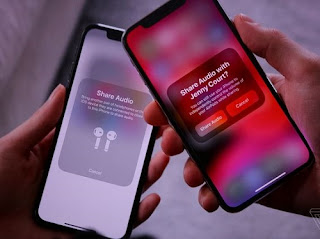
      AirPods headphones
       

    the battery

    • A new feature in iOS 13, known as Optimized Battery Charging, aims to increase long-term battery life by protecting it from overcharging.

    Gamers

    • If you are a gamer on the PlayStation or Xbox platform and have one in your home, you will be able to stream games to your iPhone or iPad and continue playing wherever you go around the house. IOS 13 also supports connecting your device to the Dual Shock 4 game controller for the PlayStation 4 or the Xbox controller.

    IPhone phones supporting iOS 13 

    IPhone phones supporting iOS 13


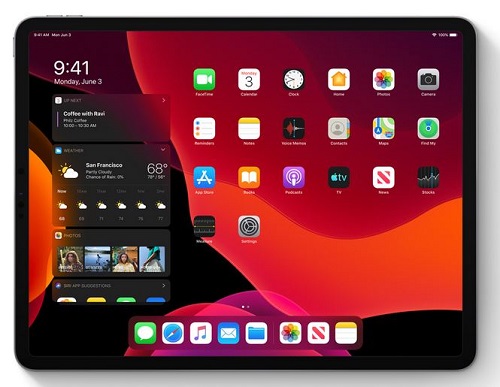
    iPadOS: The new name for iOS for iPad

    iPadOS is the new name for the iPad operating system and it carries all the basic features of the previously mentioned iOS system in addition to many other new features designed specifically for iPads, which include the following:

    • Add widgets to your home screen 
    • Run more than one window for the same application on the screen
    • Browse links by long press
    • Browse files stored on external storage devices when connected to iPad.
    • Floating windows feature: Some applications can partially appear floating on the screen while working on another application, and the floating application can be changed by dragging.
    • The File Manager application can browse files as columns.
    • File sharing via iCloud Drive
    • ZIP file compression and decompression
    • Improvements to the Safari browser to approximate desktop version: Download Manager, the ability to customize settings for a standalone site, control the font size, automatically optimize the sites to become more suitable for iPad
    • Accelerate the response to Apple's pen by twice.
    • External Storage Support: Now you can connect your USB flash drive, flash drive or SD reader to your iPad via USB-C

     
    iPadOSiPadOS

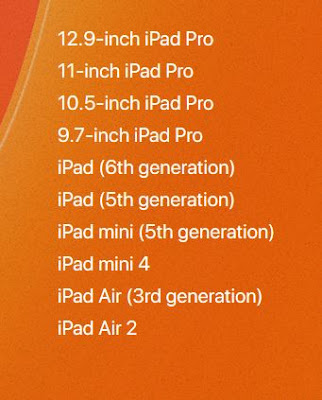
    IPads compatible with iPadOS

    IPads compatible with iPadOS

     IOS 13 / iPadOS update launch date

    There is a time plan to follow for iOS 13 / iPadOS updates, first for developers and then for Apple's beta subscribers.

    Do you want to watch the full Apple conference ?! 

    You can view the entire conference, which lasted for two hours and a third of the hour on the official Apple website through this link. The video contains the official review of all the things announced by Apple: iOS 13, iPadOS, watchOS 6 and other things.


September 19, 2019

Official iOS 13 update launch - how to properly update your device


 The iOS 13 update is now available to the public for download and installation on supported devices.In this article we will explain how to update to iOS 13 correctly to avoid any errors in addition to mentioning some of the features of iOS 13 update that you will enjoy immediately after the update, also we will respond to all Your inquiries.


Devices supported by iOS 13 update


- iPhone and iPod Touch:


The iOS 13 update for all iPhones currently running will arrive with the iOS 12 update except for three phones: iPhone 5s, iPhone 6 and iPhone 6 Plus. All newer versions of the iPhone will get an iOS 13 update.


For the iPod Touch, only the 7th generation iPod 7th 2019 will get the update.

IOS 13 update release date

IOS 13 update launches today (Thursday 19 September 2019)

Tip: It's best to wait and don't rush to download the iOS 13 update to avoid clicking on Apple's servers and ensuring the update is downloaded properly.

Important tips before updating to iOS 13:

  •  Update the apps on your device through the App Store or iTunes on your computer to make sure they are compatible with the new system and work on it without problems. By its developers over the coming days.
  • Remember the mail and Apple ID of the device, because you will need to enter it after the update.
  • Be sure to charge the battery, preferably 100% or connect the device to the charger during the update.
  •  Ensure the quality of your Internet connection (preferably over Wi-Fi).
  •  Make sure you have enough free storage space on your device (preferably 3 GB or more).
  • Take a backup of the content on your device, either through iTunes or iCloud.If the size of the backup is too large to use iTunes, this is an important precautionary step although the vast majority ignore it, and allows you to recover your data in case of any Problems with the new update.

An important step before the update for the owners of the beta version:

If you have the beta version of the iOS 13 update installed on your device and would like to update to the regular stable version, you must first unsubscribe from the trial program as shown in the images so that your device can receive the iOS 13 update normally.
  1. Go to Settings> General> Profiles
  2. Tap iOS Beta Software Profile
  3. Click Delete profile, so you will not receive any trial versions in the future.
  4.  Restart your device.   
 Unsubscribe from the beta before updating to iOS 13

Unsubscribe from the beta before updating to iOS 13Unsubscribe from the beta before updating to iOS 13
 

 How to back up (optional step) :

  1. . Through the iCloud :

    You can back up your files and data via iCloud, by going to Settings> iCloud> Storage & Backup> pressing the Back Up Now button at the bottom of the screen (prefer Way if your backup is small).

    Backup via iCloud cloud
    Backup via iCloud cloud
  2. . Through iTunes:

    • . With iTunes, after connecting your device to your computer, you can back up your applications and data. After clicking on your device in iTunes you will see all its information, make sure that in the Automatically Back Up section, the option is “This Computer” and not iCloud. Then click on the Back Up Now option in the same interface to make a backup and save it to your computer.

    Backup of iTunes

    Backup of iTunes

    • . The backup process will start, and the progress bar will appear at the top of iTunes. 
    • . After the backup is complete, you can make sure that the process is completed successfully by going to the taskbar in the program, pressing iTunes, then Preferences, then selecting the Devices tab from the window that appears, and you will see the backup is located in Device Backups and next to it It was taken. (This method is preferred if the backup is large)
    Backup of iTunes

 How to update to iOS 13 :

You can choose one of three methods, the first is suitable for everyone except those who have a jailbreak device, the second is easy and simple, the third needs some time and will return your device as you bought it the first time without your data and applications, i.e. all data will be erased and download the new system.

  1. . OTA antenna update from inside the device (the easiest and best way)

  • Turn on Wi-Fi
  • Go to Settings
  • Select the “General” or “General” tab
  • Then, Softwere Updates Software Updates
  • Select “Download and install”
  • It is recommended to connect the device to a power source (charging the phone).
** Note: This method does not cause the loss of data in the device, but also this does not replace the need to take a backup as mentioned above.


    2. Method 2 - Update through iTunes on the computer :

You can perform the update through the iTunes program via the computer is easy, as soon as you connect your device to iTunes, you will see a message alerting you to the possibility of the update, all you need to click on Download & Update the program will download and install the update automatically, and this method does not cause If you do not see the message, click Check For Update.

iOS 13 - Update via iTunes
** Note: This method also does not cause the loss of your data, however we recommend that you take a backup.


  3 - Method 3 - Manual update via iTunes :

(This method requires some additional steps, and deletes all content from your device)

This is the best method for those who own the jailbreak in case the previous steps of the update failed, and is done by downloading the update file manually (we will provide you links to download if available later) and is an file in the form of ipsw save the file on your computer, and this method will erase all Phone data so you should take a backup.

  1. Connect your iPhone or iPad to your computer while the iTunes app is running.
  2. Select Restore iPhone with Alt-click on your Mac, or hold Shift on Windows.
  3. A window will appear asking you to choose the location of the system file or the vermeer in ipsw format
  4. Select the update file you downloaded, which is an ipsw file (you can download it depending on your device type of links that will be attached in the article later).
  5. Installation is done manually.
  6.  After the update, restore the iTunes backup, by pressing the Restore Backup button. 
  
iOS 13 - Update via iTunes

iOS 13 - Update via iTunes